

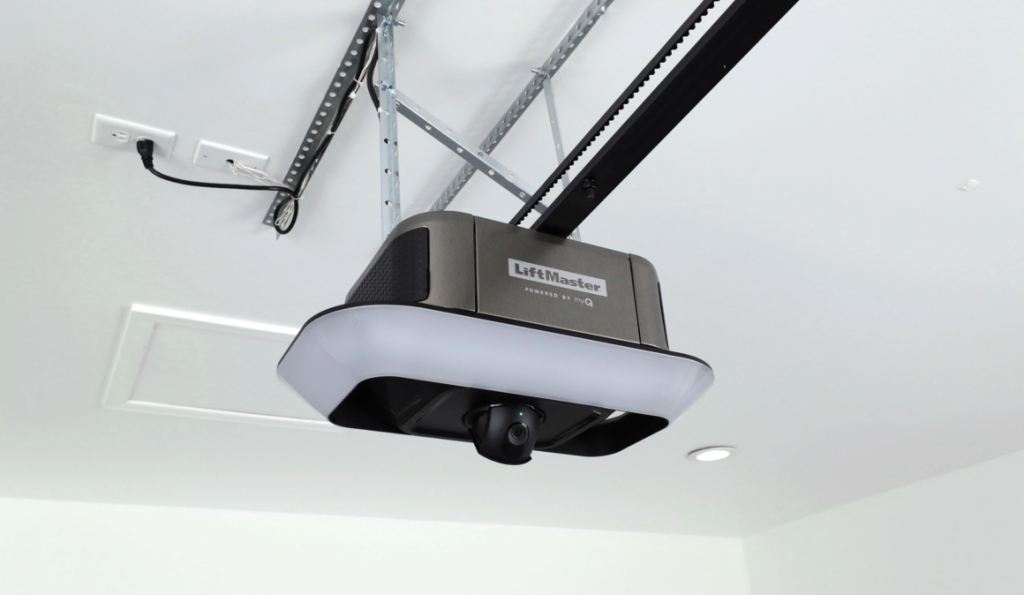
A smart garage door opener relies on a stable Wi-Fi connection to deliver remote access, real-time status updates, and reliable app control from anywhere. When the connection drops, the system can appear offline even though the garage door opener still works locally.
Resetting the Wi-Fi settings allows the smart garage door opener to clear old network credentials and reconnect properly after router changes, password updates, or signal conflicts. If the issue persists after a reset, garage door opener repair may be necessary to address deeper control board or connectivity issues.
Why Reset Your Smart Garage Door Opener Wi-Fi?
A smart garage door opener may need a Wi-Fi reset when network changes, router upgrades, firmware updates, or account sync conflicts prevent the system from maintaining stable cloud communication and accurate remote access reporting.
Common situations that make a Wi-Fi reset necessary include:
- The router name or password was recently changed.
- The opener shows connected to Wi-Fi but remains offline in the app.
- The device drops the connection after a power outage.
- Firmware updates fail to complete or stall during sync.
- The opener connects briefly, then repeatedly disconnects.
- The app cannot remotely confirm the status of your garage door.
- Smart home integrations such as Google Home stop responding.
When these connection patterns show up, and the system cannot restore stable communication, our blog on Why Is My Smart Garage Door Opener Not Connecting to Wi-Fi? helps confirm whether a reset is enough or if service is needed.
Steps to Reset Smart Garage Door Opener Wi-Fi
Check App Login and Device Permissions
App access and phone permissions can prevent pairing even when the smart garage door opener is powered on and ready to reconnect.
- Account verification: Sign in to the correct profile so the opener is not tied to an outdated user session.
- Permission confirmation: Allow Bluetooth, Local Network, and notifications so the app can discover the device and send electronic messages during setup.
- Network alignment: Keep the phone on the same Wi-Fi network the opener will use during pairing.
- Version review: Update the app so the setup flow and prompts match the current platform.
- Background readiness: Allow background activity so pairing does not drop mid-process.
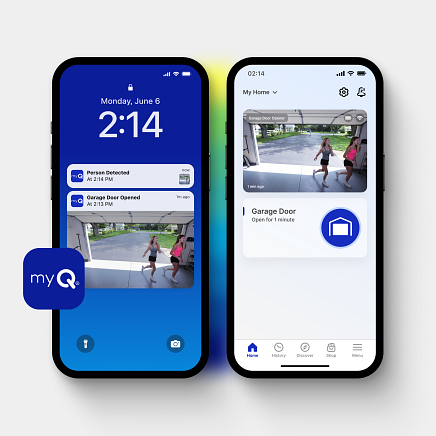
The Chamberlain Group provides a Wi-Fi troubleshooting guide that explains LED indicator behavior, 2.4 GHz requirements, and common setup interruptions that can prevent a successful myQ opener connection.
Confirm the Reset Type You Need
Reset results improve when the reset type matches the symptom, since clearing the wrong settings can keep the same connection failure in place.
- Symptom sorting: Separate offline-in-app behavior from a true cannot-join-Wi-Fi failure.
- Change tracking: Note recent router swaps, password updates, or smart home relinks.
- Device path check: Identify whether Wi-Fi is built into the opener head or handled by an external controller.
- App behavior scan: Confirm whether the device appears in the app but stalls during registration.
- Decision framing: Use a Wi-Fi reset for credential conflicts, and a deeper reset only when pairing mode will not hold.
A correct reset choice reduces repeat attempts and keeps reconnection aligned with how the opener stores network settings.
Remove the Stored Wi-Fi Network
Clearing the saved network profile prevents the opener from retaining old credentials that no longer match the current router.
- Control location: Find the Wi-Fi or settings control on the opener head or controller module.
- Erase sequence: Use the correct clear method for the platform so the stored network is truly removed.
- Indicator check: Watch for the exact light pattern that confirms the erase is completed.
- Write time: Allow a short pause after the erase to let internal memory finish updating.
- Restart discipline: Begin reconnection only after the unit returns to a ready state for setup mode.
Correctly clearing Wi-Fi creates a clean baseline, making the next pairing attempt far more reliable.
Enable Wi-Fi Pairing Mode
Pairing mode creates the discovery window that the app needs to locate the opener and begin secure registration on the network.
- Mode activation: Start pairing mode using the correct button sequence for your opener platform.
- Distance control: Keep the phone close to the opener during discovery to reduce dropouts.
- Screen focus: Stay on the add-device screen to prevent scanning from pausing mid-process.
- Network stability: Disable VPN profiles on the phone during setup to avoid handshake failures.
- Time window check: Confirm pairing mode stays active long enough to complete registration.
Reliable pairing mode sets up a stable connection path and reduces random failures during Wi-Fi onboarding.
Connect to the Correct Network
Network selection problems often occur when the opener supports only specific Wi-Fi bands or when the phone switches networks during setup.
- SSID accuracy: Select the correct network name, including capitalization and spacing.
- Band compatibility: Use 2.4 GHz if the opener does not support 5 GHz for smart home devices.
- Credential validation: Confirm the current Wi-Fi password, not an older saved credential.
- Router rule review: Avoid guest networks or client isolation settings that block onboarding.
- Signal reliability: Confirm consistent coverage at the opener location, especially for a detached garage.
Google explains why smart devices often need to be set up again after Wi-Fi changes, which matches what happens during smart opener reconnection.
Confirm Cloud Status and Remote Control
Wi-Fi connection alone is not the finish line, since cloud authentication enables remote access and accurate status reporting.
- Online confirmation: Verify the app shows the opener as online, not only connected to Wi-Fi.
- Command response: Send an open or close command and confirm a normal response.
- Status accuracy: Verify that your garage door status updates correctly after each cycle.
- Off-network validation: Test from cellular data to confirm control works away from home Wi-Fi.
- Error pattern review: Watch for repeated sign-in or token errors that point to account sync issues.
If the app still cannot send reliable commands after Wi-Fi reconnects, emergency garage door service becomes the fastest way to restore safe access when remote control failure blocks normal entry.
Check Firmware Sync After Reconnect
Firmware and app compatibility affect stability, especially when the opener reconnects but drops offline after updates or restarts.
- Update check: Look for firmware or device updates in the app dashboard.
- Completion control: Allow updates to finish before running repeated open-and-close cycles.
- Restart observation: Confirm the opener does not reboot repeatedly after reconnecting.
- Memory retention: Verify Wi-Fi settings remain saved after a brief power cycle.
- Event review: Check for repeated connection errors that suggest a platform sync problem.
Firmware alignment helps prevent disconnect loops that appear to be Wi-Fi trouble but behave like a software mismatch.
Verify Door Response After the Reset
Stable door travel matters because strain, sensor problems, or resistance can trigger faults that disrupt reporting and control.
- Travel smoothness: Watch for steady movement without stalling, reversing, or jerky motion.
- Limit behavior: Confirm full open and full close stops occur only at the correct endpoints.
- Sensor confidence: Verify safety sensors stay aligned and do not trigger unexpected stops.
- Load awareness: Listen for strain that can appear with heavier garage doors or worn hardware.
- Connection stability: Confirm the opener stays online after multiple full cycles.
Jerky travel or stop-and-reverse behavior can trigger smart faults that disrupt status reporting, which is why garage door roller repair is worth scheduling when movement issues appear right after reconnection.
Brand-Specific Wi-Fi Reset Requirements
Brand-specific Wi-Fi reset requirements vary because each smart garage door opener platform uses different pairing signals, memory behavior, and app registration steps.
|
Brand / Platform |
Reset Focus |
Success Check |
|
LiftMaster / Chamberlain (myQ) |
Clear Wi-Fi settings and re-add in the app if needed |
App shows online with accurate door status |
|
Genie (Aladdin Connect) |
Restart pairing mode and complete app registration |
Remote commands respond without delay |
|
Nexx Smart Controller |
Remove the device from the app and re-pair to refresh tokens |
The device remains online after several cycles |
|
Meross Smart Controller |
Reset network credentials and reconnect through app setup |
Stable connection with no repeated offline alerts |
|
Tailwind / Hub-Based Systems |
Reset the controller profile and confirm hub sync |
Off-network access works consistently |
Matching the reset flow to the correct brand reduces repeated setup failures and confirms whether the issue is Wi-Fi configuration or deeper system instability.
When a Reset Points to Deeper System Issues
A Wi-Fi reset can fail or only work briefly when a deeper system issue is affecting connectivity, memory, safe door travel, or how the opener reports status to the app.
- Wi-Fi reconnects but drops again, or the opener forgets the network after a restart or power outage.
- Pairing mode ends too fast to finish setup, and indicator lights do not match normal registration behavior.
- Remote access is inconsistent, with offline alerts persisting across different phones or accounts, even when the signal strength is strong.
- Door movement becomes rough, stops unexpectedly, or reverses, which can trigger system faults that disrupt smart status updates.
- Safety sensor issues can trigger stop events, making a Wi-Fi issue seem worse than it is.
Ongoing failures after clean re-pair attempts often indicate a need for smart garage door opener repair to determine whether the control board, receiver, or door system is preventing stable operation.
When a Wi-Fi Reset Is Not Enough
Resetting Wi-Fi can restore a smart garage door opener connection, but repeated failures may signal that compatibility, memory stability, or platform limits are preventing reliable app control.
- Wi-Fi reconnects briefly, but the opener keeps dropping offline after resets and re-pair attempts.
- Pairing mode will not stay active long enough to complete setup consistently.
- The opener forgets Wi-Fi credentials after restarts or a power outage, which suggests unstable memory behavior.
- Router upgrades and a strong signal do not improve stability, even when other smart devices stay connected.
- Long-term reliability may require a smart garage door opener replacement when stable connectivity cannot be restored through reset and service steps.
When the opener keeps dropping offline across multiple resets and network changes, a garage door replacement can be the more dependable choice for long-term stability and consistent app control.

Smart Camera Garage Door Opener Installation After a Reset
A Wi-Fi reset restores a clean connection state, but camera-enabled systems still need a complete reconfiguration so video, alerts, and remote viewing work correctly in the app.
- Camera pairing often requires re-adding the device inside the app so permissions and account access are rebuilt correctly.
- Video streaming can fail when upload stability in the garage is weak, even when the Wi-Fi signal shows as connected.
- Smart alerts may not trigger if cloud registration did not finish after the reset, and the device stays partially linked.
- Garage door video can appear unavailable off-network when router rules restrict the camera’s outbound connection.
- Status and video can fall out of sync when the opener reports delays, which makes event recordings unreliable.
- A professional installer is often needed when repeated reconfiguration attempts still fail, and the system cannot hold stable camera settings.
For a complete reconfiguration process after a reset in Kirkland, WA, read our blog on Smart Garage Door Opener Wi-Fi Setup in Kirkland, WA, to confirm the correct setup sequence.
How to Reduce Repeat Wi-Fi Disconnects
Repeated disconnects often occur when network behavior, account syncing, or device settings keep changing after a reset, causing a smart garage door opener to lose stability even when the setup was completed correctly.
- Router password updates can desync stored credentials and force the opener offline without warning.
- Band steering can cause the device to switch networks, disrupting long-term connectivity for smart home equipment.
- Mesh handoffs can create brief drops that break app control and delay smart alerts.
- Firewall or isolation settings can block cloud communication, which prevents reliable remote access.
- App updates can change permissions and background behavior, which disrupts device discovery and registration.
- Firmware updates can restart the opener and cause reconnect loops if the network is unstable.
Long-term stability depends on correcting the root network and platform factors outlined in our blog post, Smart Garage Door Opener Wi-Fi Troubleshooting: Quick Fixes, so that disconnect cycles stop recurring.
Smart Garage Door Opener Wi-Fi Reset Service in Kirkland, WA
A smart garage door opener should reconnect cleanly after a Wi-Fi reset, accurately report the status of your garage door, and maintain stable remote access during normal daily use. When dropouts continue, the proper course of action is a full system check that reviews network rules, device syncing, and door performance together, especially in areas exposed to extreme temperatures that can affect electronics and signal stability.
Garage Door Pros serves Kirkland, WA, with years of experience in garage door service that supports home security, smart home platforms, and app control across today’s smart features. For dependable results from a professional installer who delivers quality workmanship, contact us or give us a call today to reconfigure your connection and restore reliable control.


