

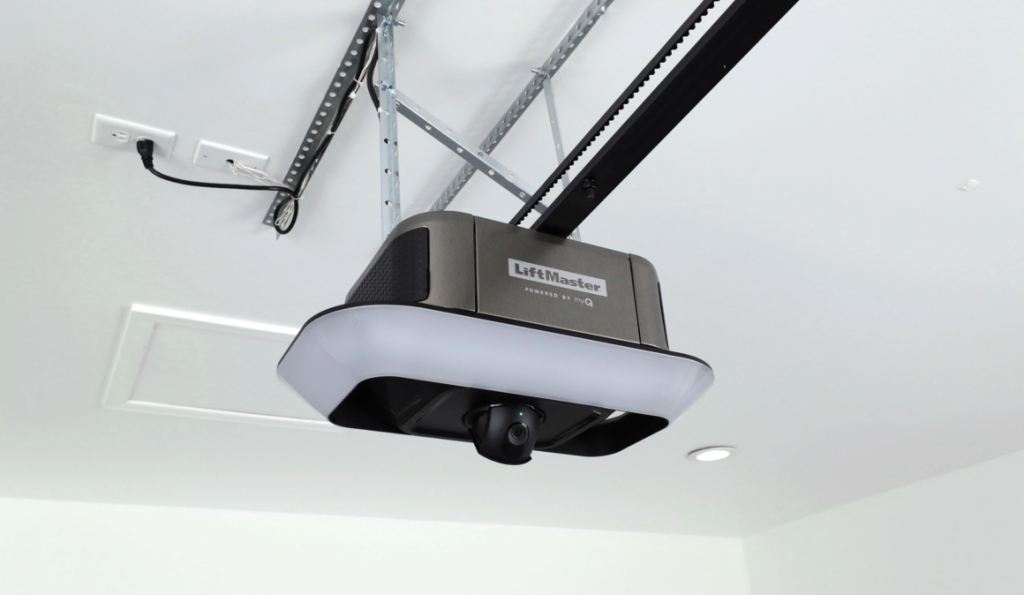
A smart garage door opener depends on a stable Wi-Fi connection for remote access, real-time status updates, and reliable app control. When that connection breaks, the system can show as offline even though the garage door still opens and closes normally from the wall control.
Resetting the Wi-Fi settings clears the stored network credentials so the opener can reconnect cleanly after a router change, password update, or signal conflict. A reset is not always the right first move, though. If the failure is caused by weak signal, router security rules, or a hardware fault, clearing credentials only restarts the same loop. If the problem persists after a correct reset, garage door opener repair may be needed to address the control board or receiver.
When a Smart Garage Door Opener Needs a Wi-Fi Reset
A Wi-Fi reset becomes necessary when stored network details or device registration data no longer match the router, and the opener cannot complete a stable reconnection on its own.
Situations that point to a credential reset include:
- The router name or password was recently changed, and the opener keeps attempting the old credentials.
- A new router or mesh system changed how the network assigns addresses to smart devices.
- The opener shows connected to Wi-Fi but remains offline in the app.
- The device drops the connection after a power outage or surge.
- Firmware updates fail to complete or stall during sync.
- The opener connects briefly, then repeatedly disconnects.
- Smart home integrations such as Google Home or Apple HomeKit stop responding.
A reset only solves the problem when the disconnect is tied to stored network or registration data. When the cause sits somewhere else on the network, the checks below identify it before you clear anything.
Confirm the Cause Before You Reset
A smart garage door opener can show a Wi-Fi connection and still fail in the app when signal quality, router security, or cloud authentication breaks the two-way command path. Matching the symptom to the cause prevents repeat setup loops.
Common reasons an opener will not connect or stay connected:
- The opener only supports 2.4 GHz, but the phone is pairing on 5 GHz.
- Band steering or a combined SSID drops the device mid-enrollment.
- Router security rules such as WPA3-only mode, MAC filtering, or client isolation block new devices.
- The signal is too weak at ceiling height, especially in a detached or finished garage.
- The app lacks Local Network, Bluetooth, or notification permissions.
- A VPN, Private Relay, or DNS filter prevents device discovery during setup.
- The router has reached its device limit and silently refuses new connections.
- The account session has expired, so the opener cannot accept new commands.
What the Wi-Fi Light and App Status Messages Mean
Matching the indicator behavior to the app message narrows whether the issue is signal, router access, account validation, or hardware.
Wi-Fi Light or App Message | What It Usually Means | What It Points To Most Often |
Wi-Fi light blinking slowly | Attempting to join Wi-Fi but not completing setup | Wrong band, weak signal, router security blocking connection |
Wi-Fi light solid | Connected at the network level | App, cloud, or account validation failing |
App shows Offline | Not reaching the cloud reliably | Firewall or DNS issues, weak signal, expired authentication |
App shows Not Responding | Commands are not completing | Network congestion, cloud delay, module instability |
App shows Device Not Found | The app cannot discover or confirm the device | Device isolation, guest network limits, incomplete setup |
Wall control works, app fails | The door operates locally but not through Wi-Fi | Router settings, cloud authentication, or account issues |
Reset or Reconnect: Which One You Actually Need
Resetting clears saved credentials. Reconnecting restores the existing connection without erasing anything. Choosing correctly saves a full re-pairing cycle.
What You Are Seeing | Better Next Step | Why |
Will not join Wi-Fi during first setup | Reconnect | Band, password, or router settings usually block pairing first |
Went offline after router changes | Reset | Stored credentials conflict after network updates |
App cannot find the opener despite strong signal | Reconnect | Phone permissions and discovery settings block setup |
Connects once, then drops repeatedly | Reconnect | Points to weak coverage or mesh handoff, not credentials |
WPA3-only router, pairing keeps failing | Reconnect | Compatibility issue, not stored data |
Many failed attempts after checking the basics | Reset | Clearing stored data removes hidden conflicts |
New phone or new login changed access | Reconnect | Account permissions block control without needing a reset |
Appears online but responds inconsistently | Reset, then evaluate | Rules out corrupted saved network info before hardware review |
Steps to Reset Smart Garage Door Opener Wi-Fi Settings
Check App Login and Device Permissions
App access and phone permissions can block pairing even when the opener is powered on and ready.
- Account verification: Sign in to the correct profile so the opener is not tied to an outdated user session.
- Permission confirmation: Allow Bluetooth, Local Network, and notifications so the app can discover the device.
- Network alignment: Keep the phone on the same Wi-Fi network the opener will use.
- Version review: Update the app so the setup prompts match the current platform.
- Background readiness: Allow background activity so pairing does not drop mid-process.
The Chamberlain Group publishes a Wi-Fi troubleshooting guide covering LED indicator behavior, 2.4 GHz requirements, and setup interruptions that prevent a successful myQ connection.
Confirm the Reset Type You Need
Reset results improve when the reset type matches the symptom, since clearing the wrong settings leaves the same failure in place.
- Symptom sorting: Separate offline-in-app behavior from a true cannot-join-Wi-Fi failure.
- Change tracking: Note recent router swaps, password updates, or smart home relinks.
- Device path check: Identify whether Wi-Fi is built into the opener head or handled by an external controller.
- App behavior scan: Confirm whether the device appears but stalls during registration.
- Decision framing: Use a Wi-Fi reset for credential conflicts, a deeper reset only when pairing mode will not hold.
Restart the Modem, Router, and Opener in Order
Stale network sessions often survive outages and router changes. Restarting in sequence clears them without touching any settings.
- Unplug the modem and wait at least 30 seconds.
- Unplug the router and wait another 30 seconds.
- Plug the modem back in and let it fully reconnect.
- Plug the router back in and wait for Wi-Fi to stabilize.
- Power cycle the opener last to force a fresh handshake.
If the app reconnects at this point, no credential reset is needed.
Remove the Stored Wi-Fi Network
Clearing the saved profile stops the opener from retaining credentials that no longer match the router.
- Control location: Find the Wi-Fi or settings control on the opener head or controller module.
- Erase sequence: Use the correct clear method for the platform so the stored network is truly removed.
- Indicator check: Watch for the light pattern that confirms the erase completed.
- Write time: Pause briefly after the erase to let internal memory finish updating.
- Restart discipline: Begin reconnection only after the unit returns to a ready state.
Enable Wi-Fi Pairing Mode
Pairing mode opens the discovery window the app needs to locate the opener and begin secure registration.
- Mode activation: Start pairing mode using the correct button sequence for your platform.
- LED confirmation: Verify the light pattern that indicates learn mode is active.
- Distance control: Keep the phone close to the opener during discovery.
- Screen focus: Stay on the add-device screen so scanning does not pause.
- Single attempt: Complete setup in one pass before the window times out.
Connect to the Correct Network
Network selection problems occur when the opener supports only specific bands or the phone switches networks mid-setup.
- SSID accuracy: Select the correct network name, including capitalization and spacing.
- Band compatibility: Join 2.4 GHz on the phone first if the opener does not support 5 GHz.
- Band steering: Turn off Smart Connect if one SSID spans both bands.
- Credential validation: Enter the current password manually rather than relying on auto-fill.
- Router rule review: Avoid guest networks and client isolation settings that block onboarding.
Google explains why smart devices often need to be set up again after Wi-Fi changes, which matches what happens during smart opener reconnection.
Confirm Cloud Status and Remote Control
A Wi-Fi connection alone is not the finish line, since cloud authentication is what enables remote access and accurate status reporting.
- Online confirmation: Verify the app shows the opener as online, not only connected to Wi-Fi.
- Command response: Send an open or close command and confirm normal response timing.
- Status accuracy: Verify the door status updates correctly after each full cycle.
- Off-network validation: Test from cellular data to confirm control works away from home Wi-Fi.
- Error pattern review: Watch for repeated sign-in or token errors that point to account sync issues.
If the app still cannot send reliable commands after Wi-Fi reconnects, emergency garage door service is the fastest way to restore safe access when remote control failure blocks normal entry.
Check Firmware Sync and Door Response
Firmware mismatches and rough door travel both produce symptoms that look like Wi-Fi trouble.
- Update check: Look for firmware or device updates in the app dashboard and let them finish uninterrupted.
- Memory retention: Verify Wi-Fi settings remain saved after a brief power cycle.
- Travel smoothness: Watch for steady movement without stalling, reversing, or jerky motion.
- Limit behavior: Confirm full open and close stops occur only at the correct endpoints.
- Sensor confidence: Verify safety sensors stay aligned and do not trigger unexpected stops.
Jerky travel or stop-and-reverse behavior can trigger smart faults that disrupt status reporting, which is why garage door roller repair is worth scheduling when movement issues appear right after reconnection.
Check Wi-Fi Signal Strength at the Opener
Weak garage coverage blocks pairing and causes dropouts after a successful reset, so signal should be measured where the unit actually runs.
- Check Wi-Fi strength directly under the opener, not near the entry door.
- Test at ceiling height, since a floor-level reading can be misleading.
- Move the router higher and closer to the garage-facing wall.
- Place a mesh node near the interior garage entry for better reach.
- Keep mesh gear away from metal shelving and dense storage.
- Re-test after each change to confirm improvement.
Distance, dense surfaces, and nearby electronics all weaken wireless performance. AT&T outlines common causes of Wi-Fi interference that reduce range and reliability in homes.
Router Settings That Block Reconnection
Router security and access rules can silently reject a device even when the signal is strong and the credentials are correct.
- Use WPA2 temporarily if WPA3-only mode causes compatibility issues.
- Disable MAC filtering during setup.
- Turn off client isolation if the app cannot see the device.
- Check device limits that may quietly stop new connections.
- Reserve a fixed IP address for the opener to prevent DHCP lease conflicts.
- Update router firmware for stability and security improvements.
Google documents how Wi-Fi security and router configuration affect device access and authentication for smart home equipment.
Brand-Specific Wi-Fi Reset Requirements
Each platform uses different pairing signals, memory behavior, and app registration steps.
Brand / Platform | Reset Focus | Success Check |
LiftMaster / Chamberlain (myQ) | Clear Wi-Fi settings and re-add in the app if needed | App shows online with accurate door status |
Genie (Aladdin Connect) | Restart pairing mode and complete app registration | Remote commands respond without delay |
Nexx Smart Controller | Remove the device from the app and re-pair to refresh tokens | Device remains online after several cycles |
Meross Smart Controller | Reset network credentials and reconnect through app setup | Stable connection with no repeated offline alerts |
Tailwind / Hub-Based Systems | Reset the controller profile and confirm hub sync | Off-network access works consistently |
How to Stop Repeat Disconnects After the Reset
Repeated disconnects usually mean network behavior or account syncing keeps changing after setup, even when the reset itself was completed correctly.
- Router password updates desync stored credentials and force the opener offline without warning.
- Band steering switches the device between networks, disrupting long-term connectivity.
- Mesh handoffs create brief drops that break app control and delay alerts.
- Firewall or isolation settings block cloud communication and prevent remote access.
- App updates change permissions and background behavior, disrupting discovery.
- Firmware updates restart the opener and cause reconnect loops on an unstable network.
- Voltage dips can mimic Wi-Fi loss, so confirm stable power at the outlet.
A full-day check verifies whether the connection holds under real use, including evening peak hours when household network traffic is heaviest.
When a Reset Is Not Enough: Repair or Replacement
Persistent failures after clean re-pair attempts indicate the issue is no longer Wi-Fi configuration but internal hardware or platform compatibility.
What You Are Seeing | Repair Is More Likely When | Replacement Is More Likely When |
Connection pattern | Failures tie to router changes, timing, or signal conditions | Failures repeat the same way across different networks |
App control | Door works locally but app status and commands fail | The device cannot stay registered or remains offline |
Credential behavior | Credentials sometimes save and sometimes drop | Credentials will not save or disappear after every restart |
Model compatibility | Opener supports modern network settings | Older models cannot handle current router security or bands |
Indicator behavior | Lights match documented pairing patterns | Lights flash patterns that do not match Wi-Fi mode at all |
Long-term reliability | Service can stabilize connectivity | Ongoing instability makes replacement the dependable route |
Other signs that point to hardware: the antenna is loose or damaged, the unit reboots or loses saved settings without any router change, firmware updates fail on a stable connection, or every other smart device in the home stays connected while only the opener drops. When instability continues across multiple resets and network changes, garage door replacement can be the more dependable long-term choice.
Smart Garage Door Opener Wi-Fi Reset Service in Kirkland, WA
Kirkland garages create specific connectivity challenges. Insulated and finished garages weaken signal at ceiling height, detached garages sit past the practical range of a single router, and extreme temperature swings affect both electronics and signal stability. Electrical interference during motor startup can also disrupt communication for a moment at exactly the wrong time.
A smart garage door opener should reconnect cleanly after a Wi-Fi reset, report door status accurately, and hold stable remote access in daily use. When dropouts continue, the proper course of action is a full system check that reviews network rules, device syncing, and door performance together rather than separately.
Garage Door Pros serves Kirkland, WA with years of experience in garage door service supporting home security, smart home platforms, and app control. Ongoing performance also stays more consistent when setup is paired with routine garage door maintenance, since early wear and connectivity changes are easier to catch before reliability drops. For dependable results from a professional installer, contact us or give us a call today.
Frequently Asked Questions
How many times can I reset the Wi-Fi settings before it damages the opener?
Repeated resets will not damage the hardware, since clearing credentials only rewrites a small section of memory. However, needing more than two or three resets in a short period is itself a signal. It usually means the underlying cause is signal strength, router rules, or a failing Wi-Fi module rather than stored data.
Do I need the original Wi-Fi password if I am resetting after a router replacement?
No. The reset erases the old credentials entirely, so only the new network name and password matter. Have the current details ready before you start, because most pairing windows time out in a few minutes and a failed entry means restarting the whole sequence.
Will a Wi-Fi reset erase my garage door's open and close travel limits?
No. Travel limits and force settings are stored separately from network credentials on nearly every platform. A Wi-Fi reset should leave door operation untouched. If travel behavior changes after a reset, that points to a mechanical or control board issue that was already developing.
Can I reset the Wi-Fi settings without physically going into the garage?
Usually not. Most openers require a physical button sequence on the motor head or controller module to clear stored credentials and enter learn mode. Some app-based platforms allow removing the device remotely, but re-pairing still needs someone at the unit.
What should the indicator light do during a successful reset?
The pattern varies by brand, but the sequence is consistent: a distinct change confirms the erase completed, then a separate blinking pattern signals that pairing mode is active. If the light never changes state after the button sequence, the reset did not register and the opener is not listening for a new connection.
Does the opener need to be unplugged before clearing the stored network?
No, and unplugging first can actually interrupt the process. Clear the network while the unit is powered so the memory write completes properly. Power cycling belongs later in the sequence, after the erase is confirmed and before pairing begins.
Why does the opener rejoin Wi-Fi but lose it again every night?
A nightly pattern almost always means network congestion or a scheduled router event rather than a credential problem. Peak household streaming, an automatic router reboot, or a DHCP lease expiring at a fixed interval will all produce this. Reserving a static IP for the opener resolves most cases.
Can I use a Wi-Fi extender in the garage instead of resetting again?
An extender helps if weak signal is the real cause, but it introduces its own risk. Extenders often create a second network name, and the opener may bounce between the two. A mesh node placed near the interior garage entry is more reliable because it keeps a single network identity.
Should I reset the opener or the router first when both were changed?
Configure the router first and let it stabilize completely. Confirm the 2.4 GHz band is available, band steering is off, and security is set to WPA2 if compatibility is uncertain. Only then reset the opener. Resetting in the reverse order means pairing against settings that are still changing.
Does a smart garage door controller reset differently than a built-in Wi-Fi opener?
Yes. An add-on controller stores credentials in its own module, so the reset happens on the controller rather than the opener head, and the opener’s own memory stays untouched. Controllers also tend to require full removal from the app before re-pairing, since account tokens are tied to the module.


